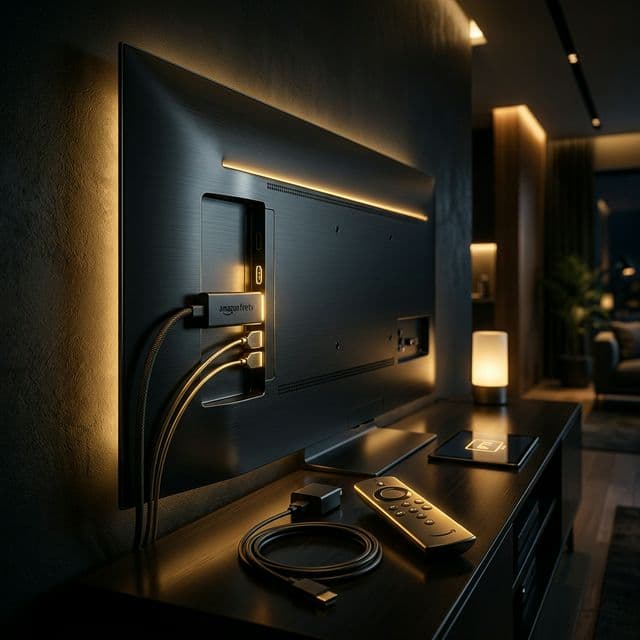
What You Need Before Starting
Setting up IPTV on your Amazon Firestick is straightforward, but having everything ready beforehand will make the process even smoother. Here is what you will need to get started with IPTV on your Fire TV Stick:
Requirements Checklist
- Amazon Firestick — Any generation works (Firestick 4K, Firestick 4K Max, or Fire TV Cube recommended for best performance).
- Stable Internet Connection — Minimum 25 Mbps for HD, 50+ Mbps recommended for 4K streaming.
- IPTV Subscription — Active subscription with your login credentials (Xtream Codes or M3U URL).
- Amazon Account — Needed to download apps from the Amazon Appstore.
Once you have these items ready, you can complete the entire setup process in under 10 minutes. Let us walk through each step to install IPTV on your Fire TV Stick.
Step 1: Enable Developer Options
To install IPTV apps that are not available on the Amazon Appstore, you need to enable Apps from Unknown Sources. This is a safe and reversible setting that allows you to sideload applications.
- From your Firestick home screen, navigate to Settings (gear icon in the top right).
- Scroll right and select My Fire TV (or Device & Software on older versions).
- Select Developer Options.
- Turn on Apps from Unknown Sources (you may also need to enable ADB Debugging).
- A warning will appear — select Turn On to confirm.
Note: If you cannot see Developer Options, go to Settings → My Fire TV → About → Click on your device name 7 times rapidly. This will unlock Developer Options.
Step 2: Install Downloader App
The Downloader app is a free utility that allows you to download and install APK files directly on your Firestick. It is available in the official Amazon Appstore, making it completely safe to install.
- Go to the Search icon (magnifying glass) on your Firestick home screen.
- Type Downloader and select it from the suggestions.
- Select the Downloader app (orange icon by AFTVnews).
- Click Download (or Get) and wait for the installation to complete.
- Once installed, click Open to launch the app.
Step 3: Download a Streaming Player (Smarters Pro)
IPTV Smarters Pro is widely considered the best IPTV app for Firestick due to its user-friendly interface, stability, and support for multiple IPTV formats. Here is how to install it using the Downloader app:
- Open the Downloader app and allow any permissions requested.
- In the URL field, type:
iptvsmarters.com - Click Go and the website will load — navigate to the download section.
- Download the Firestick / Android TV version APK file.
- Once downloaded, click Install when prompted.
- After installation, click Done (we will open it in the next step).
Step 4: Enter Your Credentials
Now it is time to connect IPTV Smarters Pro to your IPTV subscription. You will need the credentials provided by your IPTV service. Most services provide either Xtream Codes login details or an M3U playlist URL.
- Find IPTV Smarters Pro in Settings → Applications → Manage Installed Applications and open it.
- Accept the terms and conditions.
- Select Login with Xtream Codes API (recommended) or Load Your Playlist for M3U.
- Enter your subscription details:
- Any Name: Give your playlist a name (e.g., "My IPTV").
- Username: Your IPTV username.
- Password: Your IPTV password.
- Server URL: Your provider's server address (e.g.,
http://provider.com:8080).
- Click Add User and wait for the app to load your channels.
Step 5: Start Watching
Congratulations! Your IPTV setup on Firestick is complete. Here is how to navigate and enjoy your new streaming service:
- Live TV — Access thousands of live channels organized by country and category. Use the search function to find specific channels quickly.
- Movies — Browse the VOD section for an extensive library of movies, from the latest releases to classic favorites.
- Series — Find complete TV series with all seasons and episodes organized for easy binge-watching.
- Catch-Up — Missed a show? Many channels offer catch-up TV so you can watch previously aired content.
Best Streaming Apps for Firestick 2026
While IPTV Smarters Pro is excellent, here are other popular IPTV apps that work great on Amazon Firestick:
- TiviMate (Premium — $4.99 one-time) — The best premium IPTV player with EPG support, recording capabilities, and a beautiful interface.
- XCIPTV Player (Free) — A free alternative with good performance and support for Xtream Codes. Clean interface with favorites support.
- GSE Smart IPTV (Free) — Feature-rich player supporting multiple playlist formats including M3U, JSON, and Xtream Codes.
- Perfect Player (Free) — Simple and lightweight player perfect for users who want basic functionality without bloat.
Troubleshooting Common Issues
If you encounter any problems during or after setup, here are solutions to the most common issues:
Channels Not Loading
Double-check your credentials are entered correctly. Ensure your subscription is active and not expired. Try restarting the app or your Firestick.
Buffering Issues
Check your internet speed (minimum 25 Mbps recommended). Consider using an Ethernet adapter instead of WiFi. Clear the app cache in Settings → Applications.
App Crashes
Ensure your Firestick software is up to date. Try uninstalling and reinstalling the IPTV app. Clear device cache by restarting your Firestick.
Cannot Find Developer Options
Go to Settings → My Fire TV → About → Click on your device name 7 times rapidly to unlock Developer Options.
Frequently Asked Questions
Get Started with GlobalIPTV Today
Join thousands of satisfied customers streaming 120,000+ channels in crystal-clear 4K quality.

Mohamed Boudrika
Founder & CEO of GlobalIPTV
IPTV industry expert with years of experience in digital streaming solutions. Passionate about delivering premium entertainment worldwide.
Learn more about Mohamed